How it works
From the first tap to the tenth workout.
Show the app your gym, and your AI coach does the rest. Each step is a screen in the app.
-
Open the app.
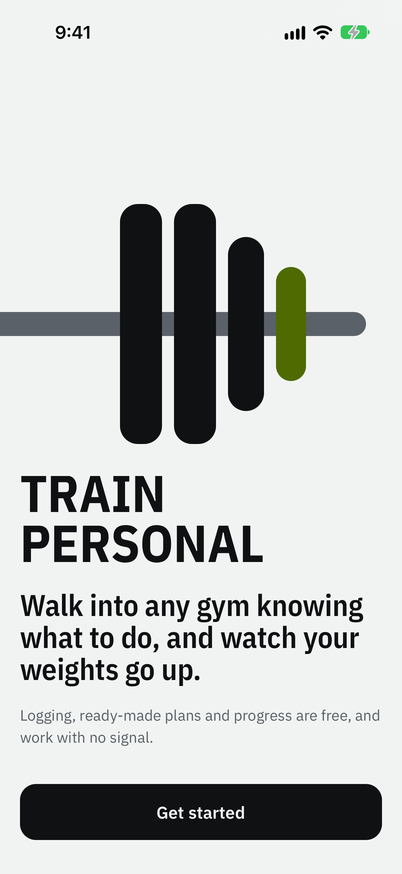
It opens on what it's for, and what's free. No sign-up to get through.
-
Photograph your gym.
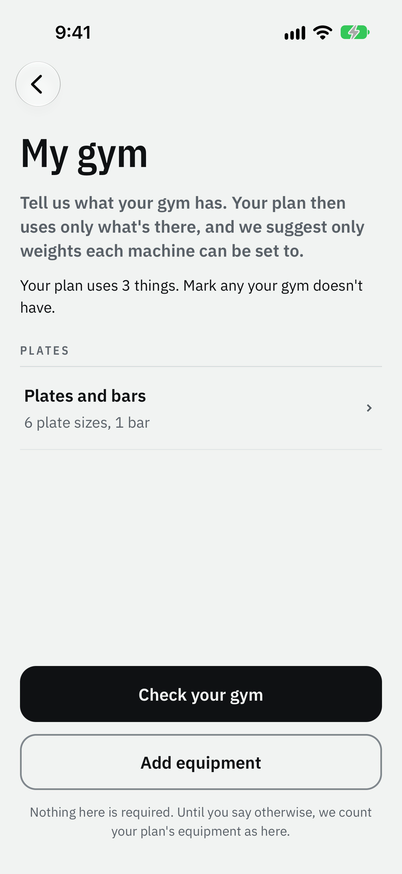
In My gym, photograph the machines, racks and weights, or choose up to 30 photos at a time from your library. AI names each machine and, when they are printed on it, reads its weights. My gym keeps the list: every machine, the weights it can be set to, your bars and plates.
-
A plan built around it.
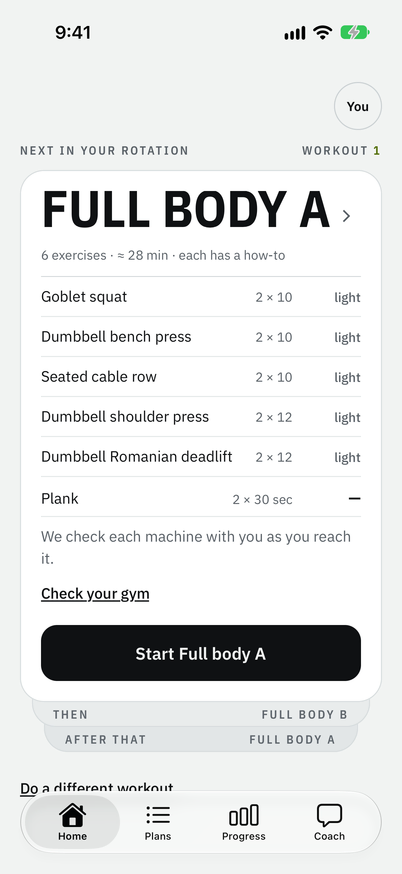
Say how many days a week you can train, and AI builds a whole plan from the equipment in My gym. Want to start in seconds instead? Answer four questions for a ready-made plan. Home always shows the next workout, and the first one starts light.
-
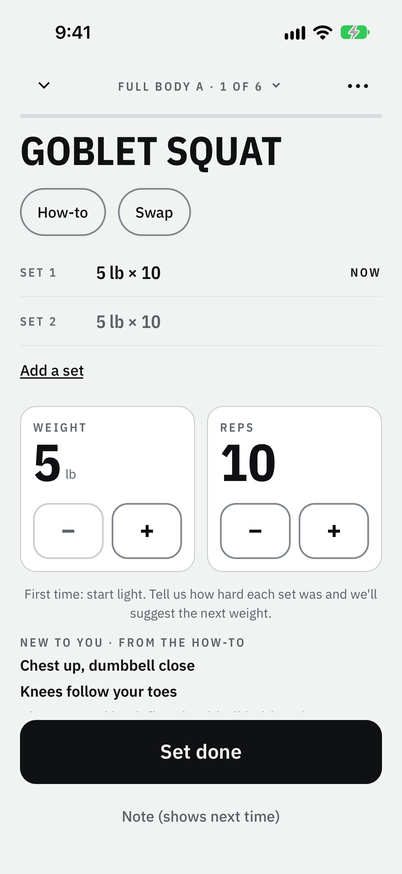
One tap a set.
A set is a few lifts in a row; each lift is a rep. Lift, then tap Set done. Rest starts by itself, and your phone tells you when it's over, even when it's locked. Say how hard the set was, and the app suggests the next weight.
-
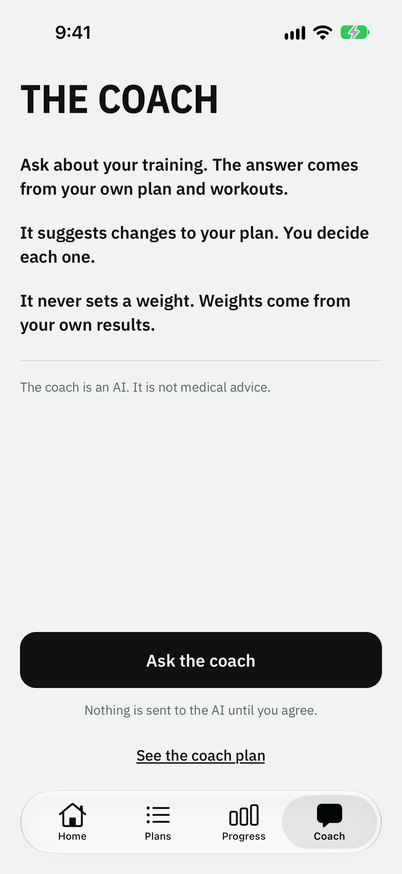
Chat with your coach, mid-workout.
Too easy? Short on time? Ask in plain words. Your coach knows the exercise you're on, your gym and your history, and edits your workout live: it swaps exercises and changes sets, reps and rest in the workout you're doing, and in your plan for next time. One tap approves each change.
-
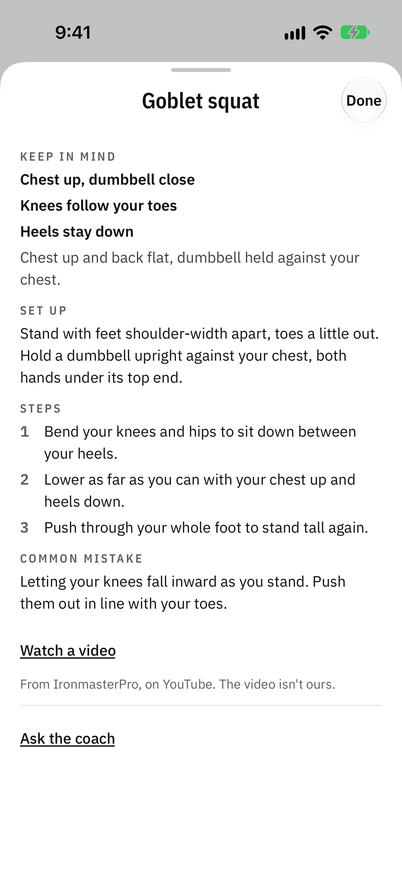
Look up any exercise.
Tap How-to for the set-up, the steps, what to keep in mind and a common mistake, in plain words. Almost every exercise has a video from YouTube too. The words work with no signal; videos need one.
-
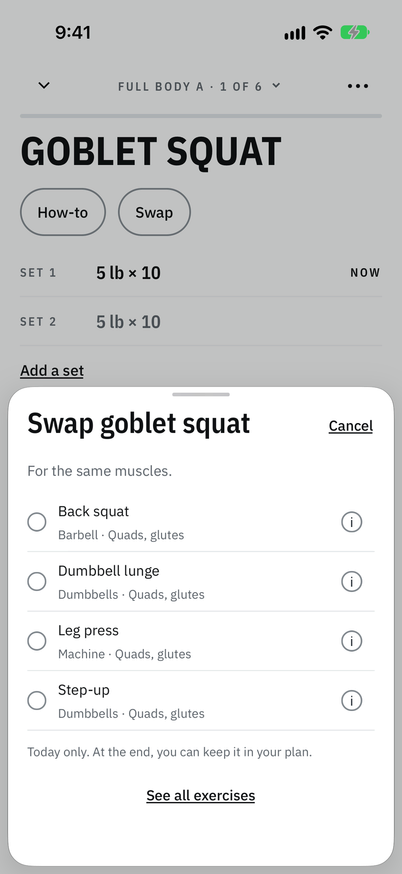
Machine taken? Swap.
Tap Swap for another exercise that works the same muscles, for today. At the end, choose whether to keep it in your plan.
-
More weight, when you're ready.
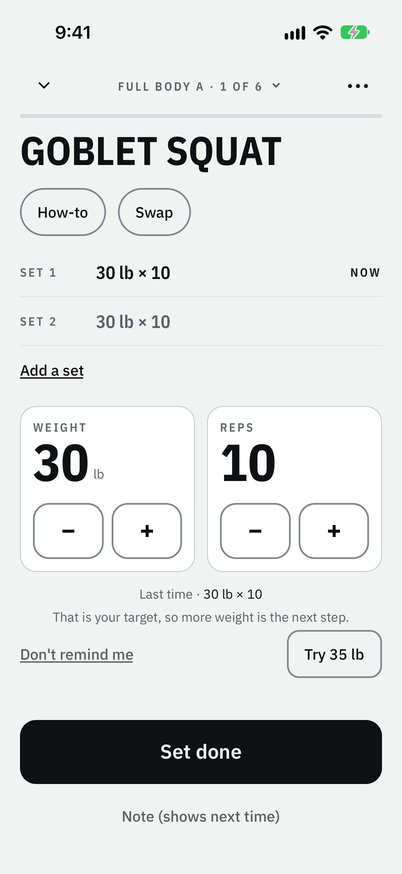
Each exercise has a number of reps to reach, such as 10. Reach it on every set, and next time the app says so before you lift, with the reason. Try it with one tap, or keep the weight you have.
-
Finish, and see what changed.
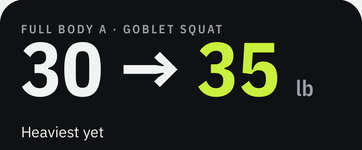
Tap Finish workout, and the card on Home turns over and says what went up. Want a copy kept? Sign in with Apple or Google. It's your choice.
-
By your tenth workout.
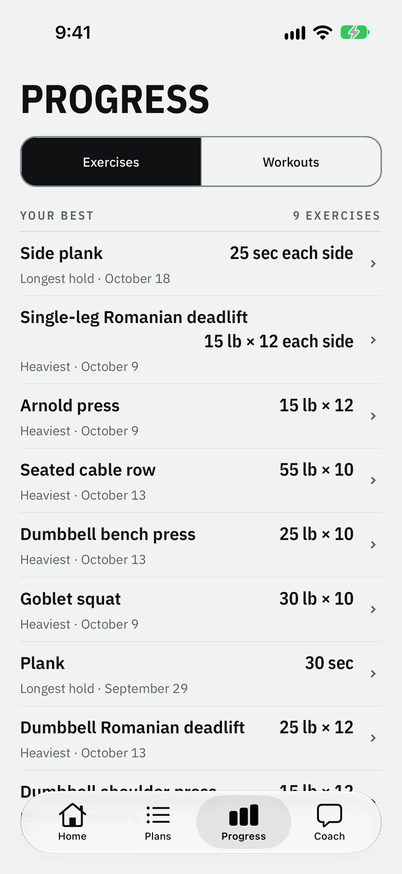
Before you start, Home can show today's focus: one thing your last visits point to. Progress keeps each exercise's record, a chart and the best estimated single lift, worked out from your sets. Forgot to log a workout? Add it. Logged one wrong? Fix it.